
# Facebook Conversions
advanced expert team enterprise
The Facebook Conversions integration sends conversions from Keitaro to Facebook Ads Manager via Conversions API. Sent events are used in Facebook to optimize advertising campaigns.
The conversion sending integration is separate from cost import. To import costs from Facebook to Keitaro, see Facebook Costs.
To send conversions via pixel without using the integration and API, use Facebook Pixel.
# Creating the Integration
Open Integrations and select Facebook Conversion:
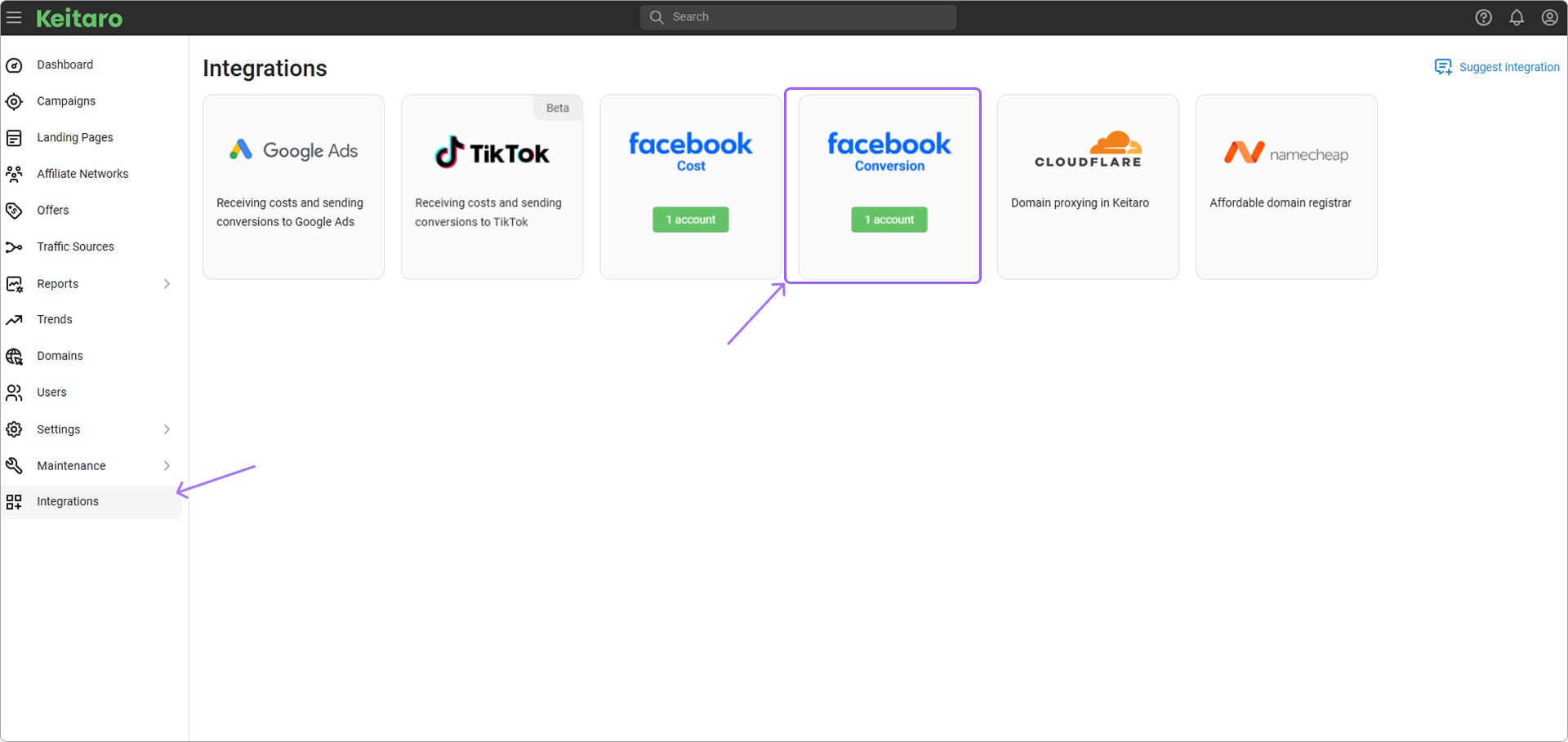
Click Add account. The integration creation form opens.
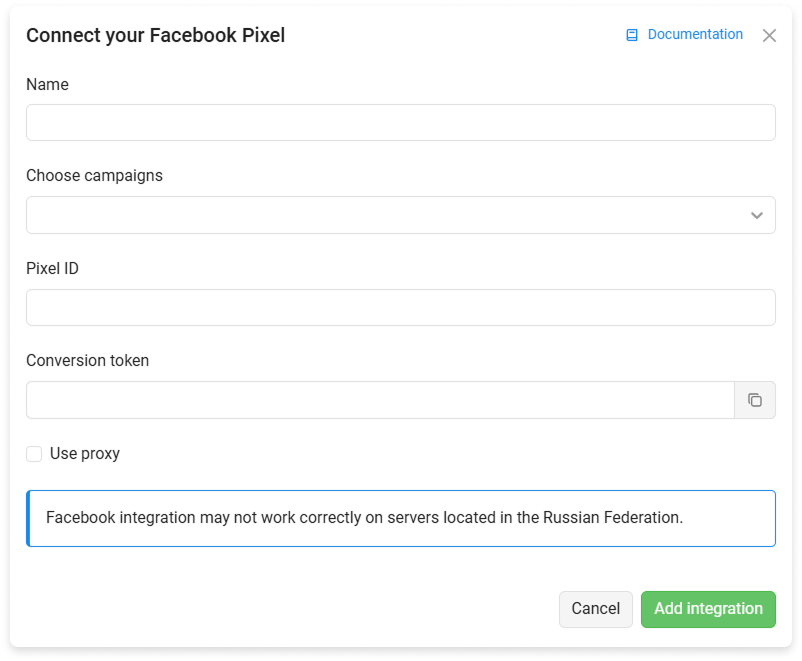
# Integration Parameters
- Name. Integration name.
- Choose campaigns. Keitaro campaigns for sending conversions to Facebook.
- Pixel ID. Facebook pixel identifier for sending events via API, see the instructions.
- Conversions token. Access token for Conversions API. See Conversion Token.
- Use proxy. Sends requests to Facebook API through a proxy.
# Pixel ID
Pixel ID is located in the pixel settings in Facebook Events Manager.
Facebook instructions Find your Meta Pixel ID.
# Conversion Token
The parameters for filling in the integration fields are described in the Facebook instructions.
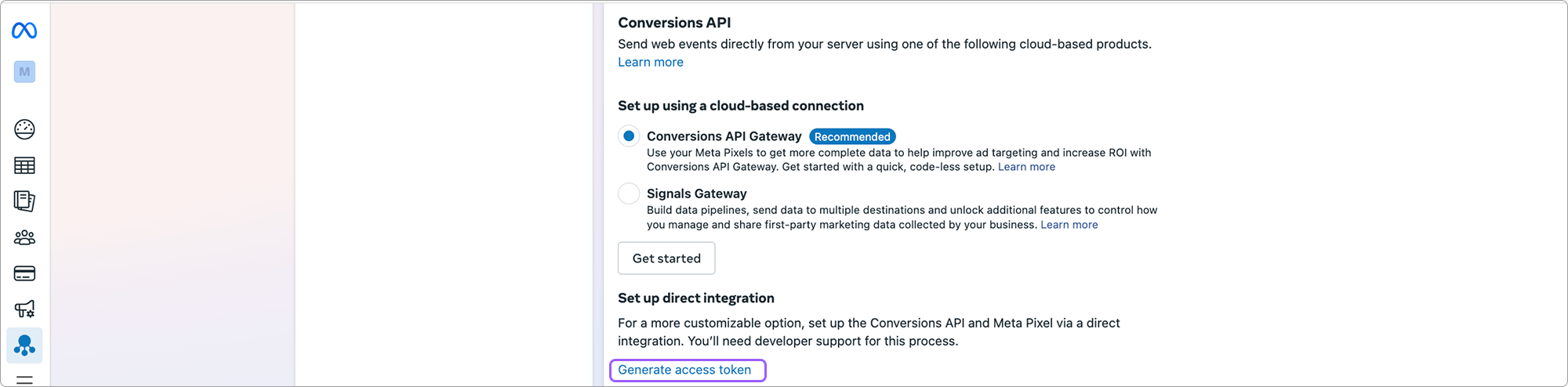
The Conversion token is located in the personal account settings. Click Generate Access Token. See the token instructions.
WARNING
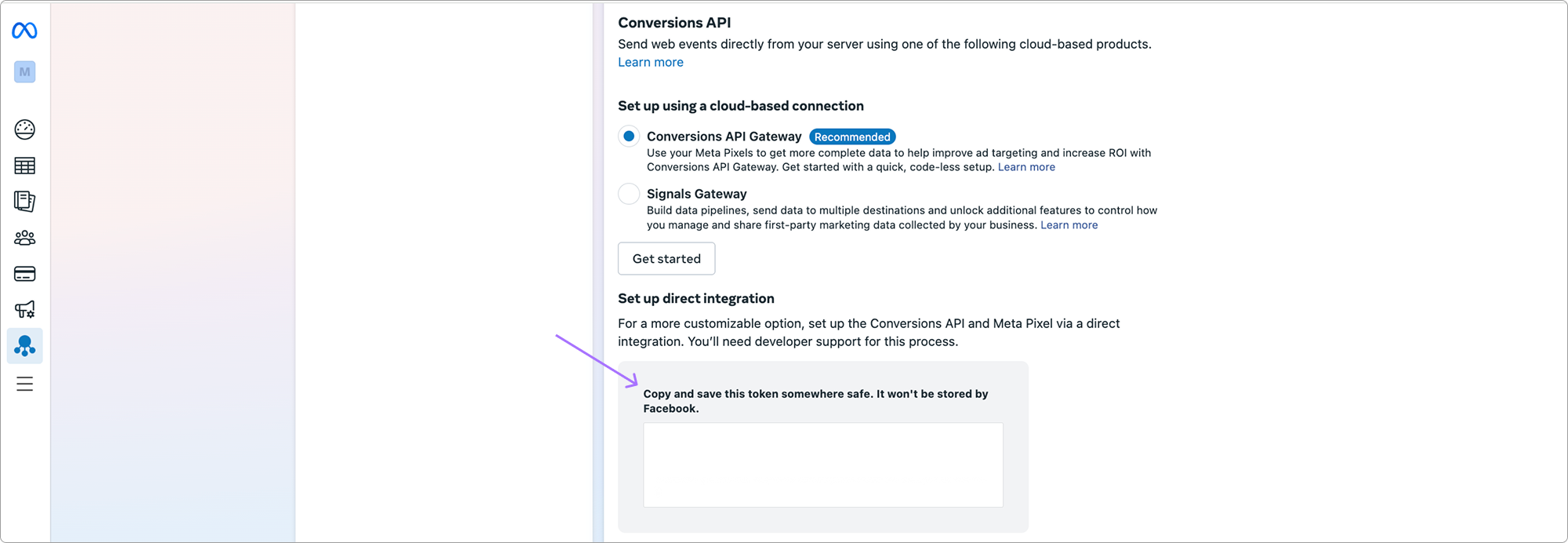
Copy and save the token in a secure place. The token is issued once; repeated viewing is unavailable. If the token is lost, reissue it.
# Setting Up a Campaign in Keitaro
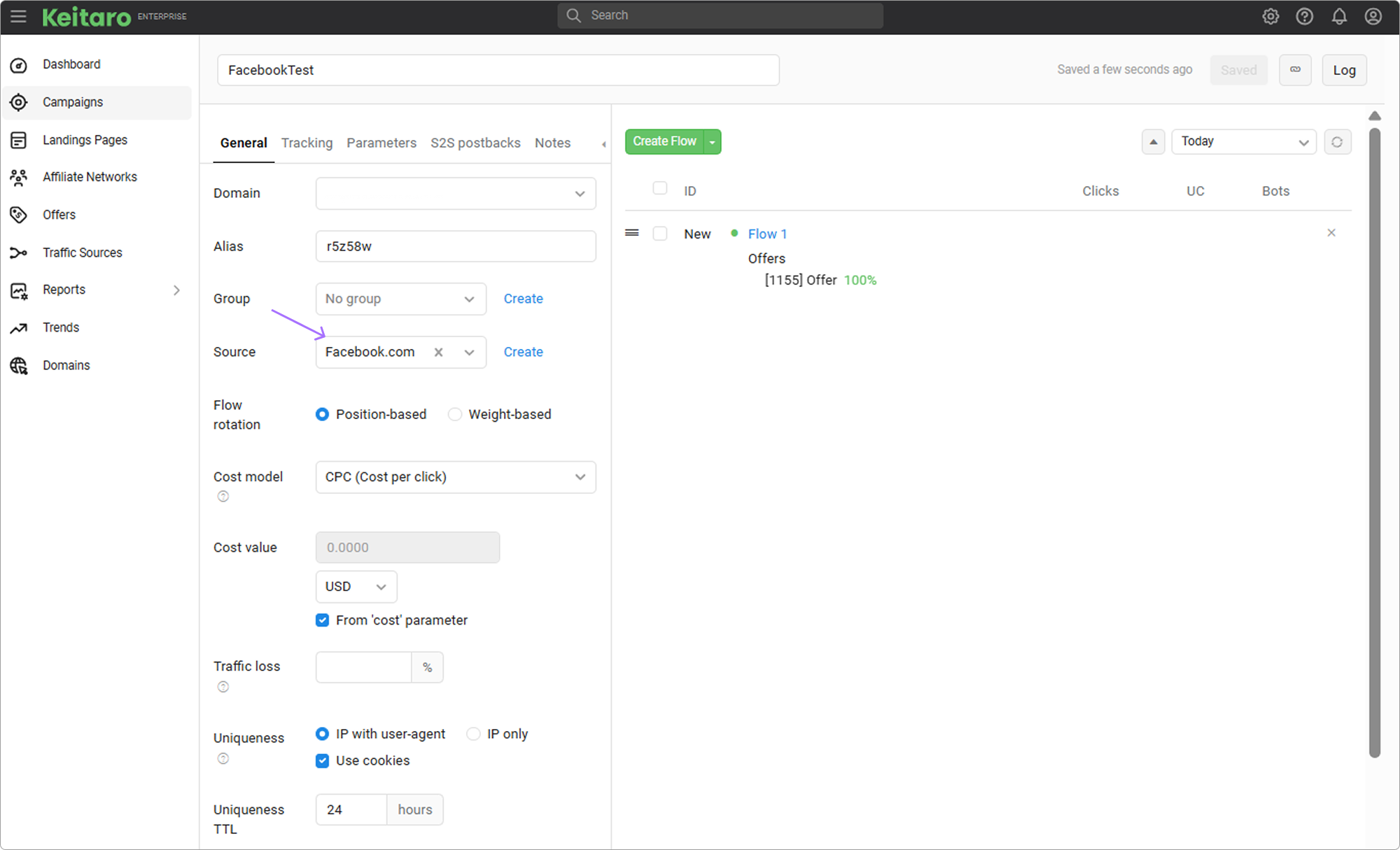
Create a campaign in the tracker.
When creating the campaign, use the Facebook source template and save the campaign:
Connect the Facebook Conversions integration to the campaign.
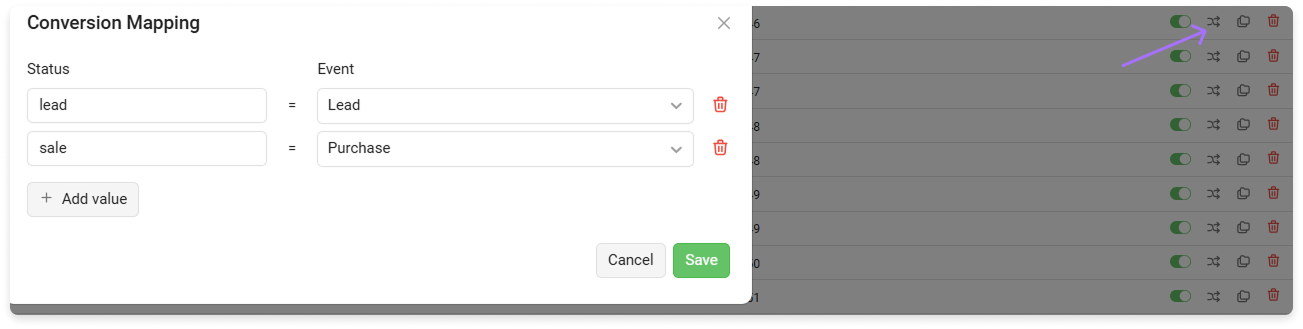
In the integration settings, click Mapping. Select Facebook events for the required Keitaro statuses to send to Facebook Ads Manager:
# Setting Up Facebook Ads Manager
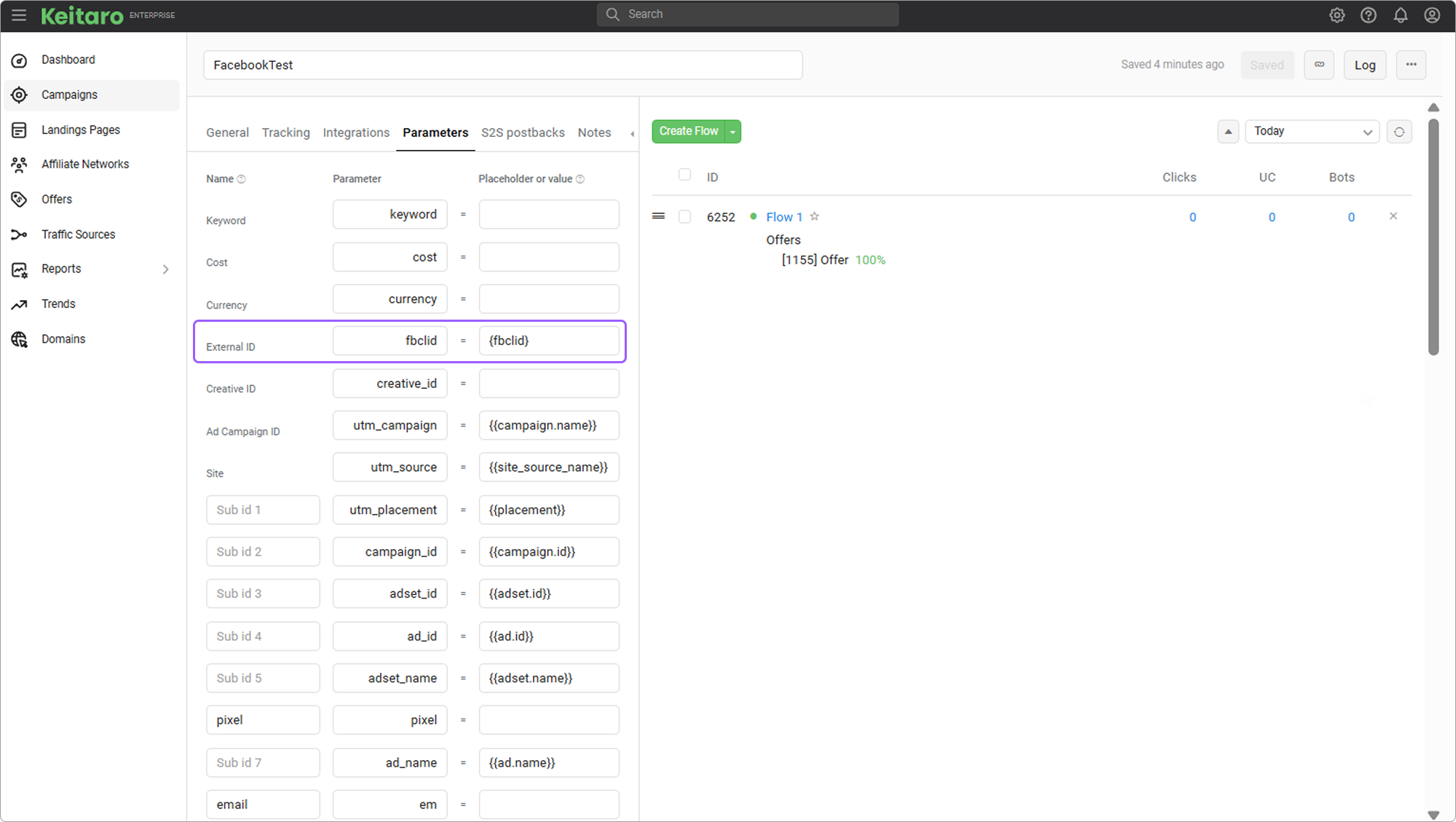
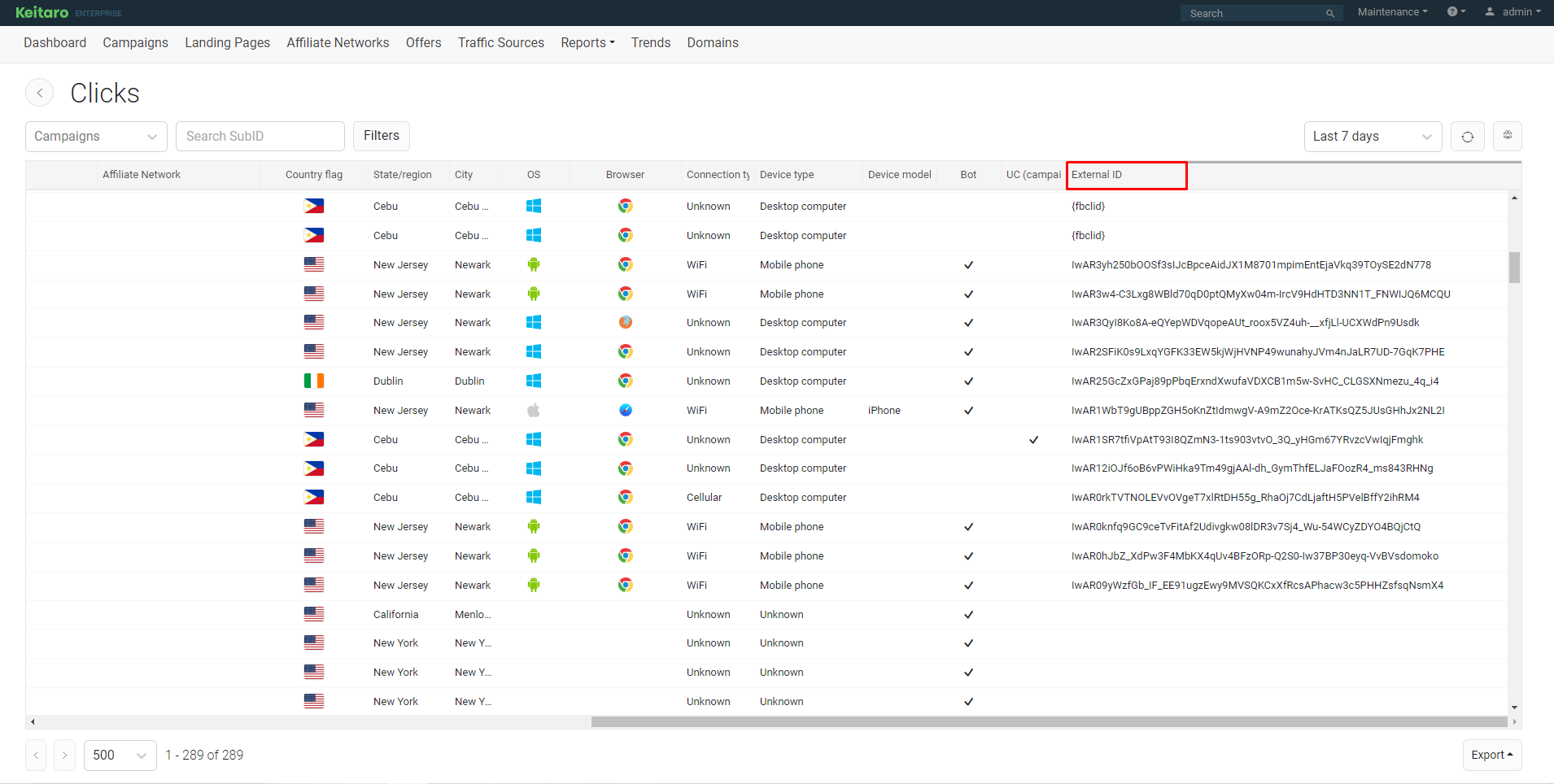
Conversions are sent when the fbclid parameter is present:
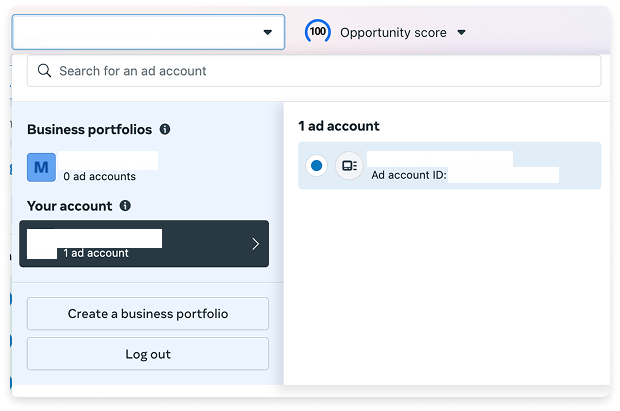
- Open Facebook Ads Manager and go to the business account:
- Create an advertising campaign:
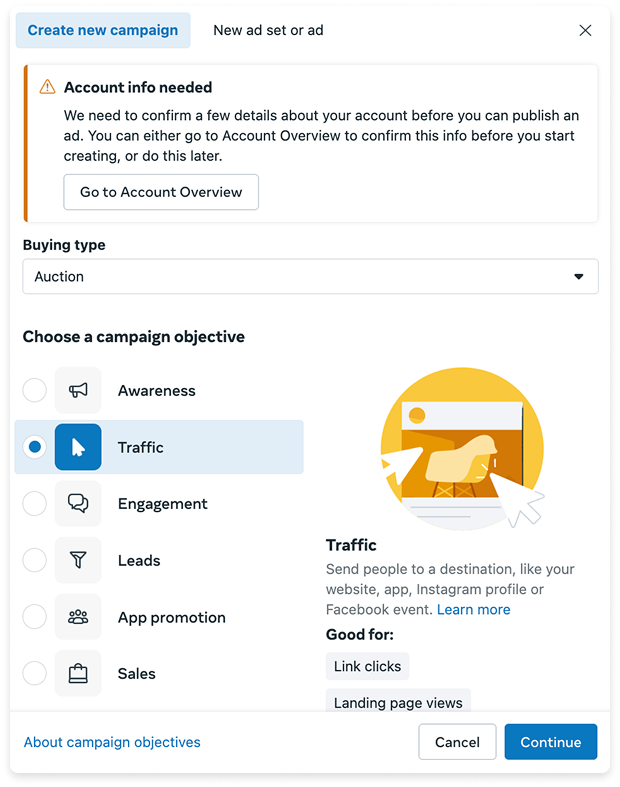
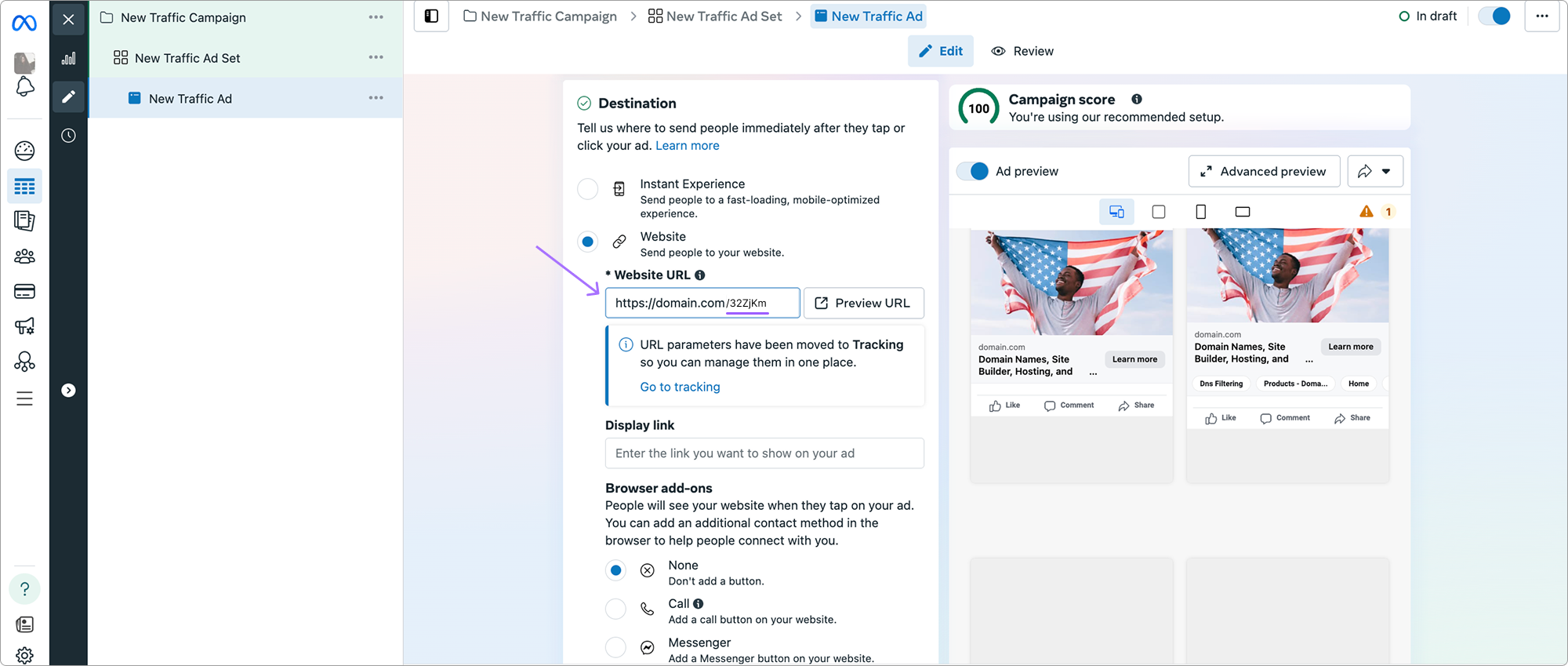
- In Website URL, specify the Keitaro campaign link with the identifier:
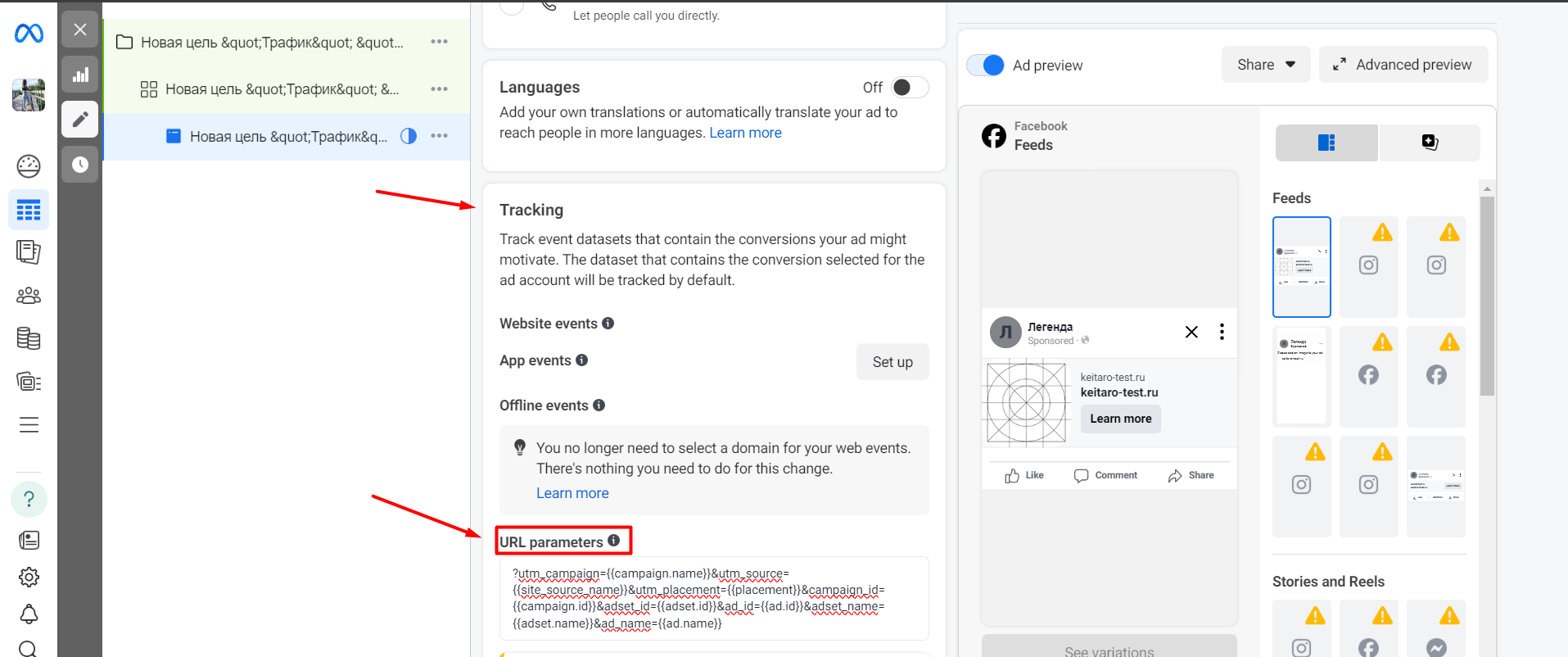
- In URL parameters, add the tracker parameters:
WARNING
Remove fbclid={fbclid} from URL Parameters when adding campaign parameters to Facebook. Leave the Keitaro campaign template unchanged.
fbclid is generated automatically and is not passed by a source placeholder. The presence of fbclid={fbclid} in the link prevents the tag from being recorded in the tracker.
- Publish the campaign and check its status in Facebook Ads Manager:
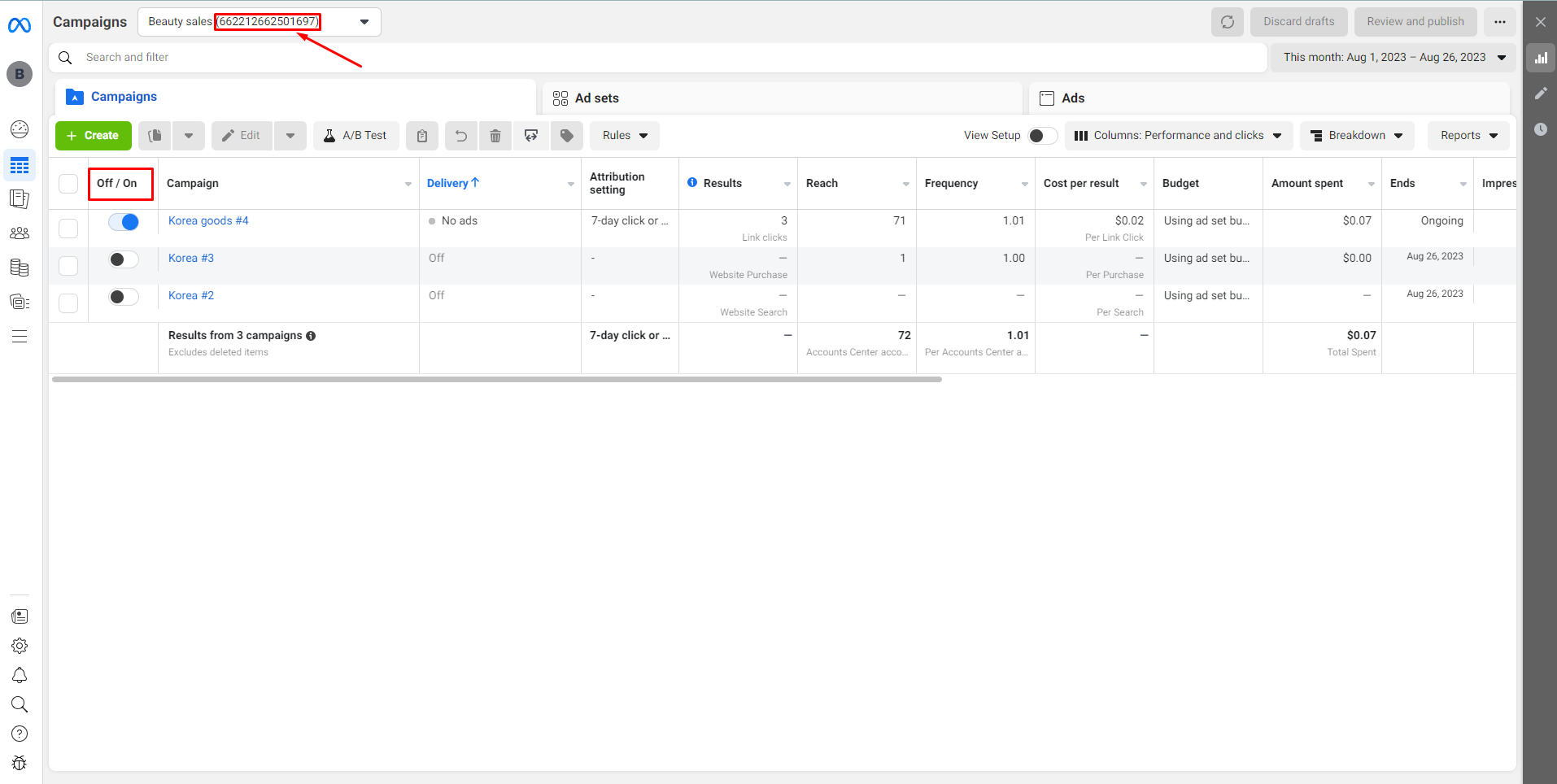
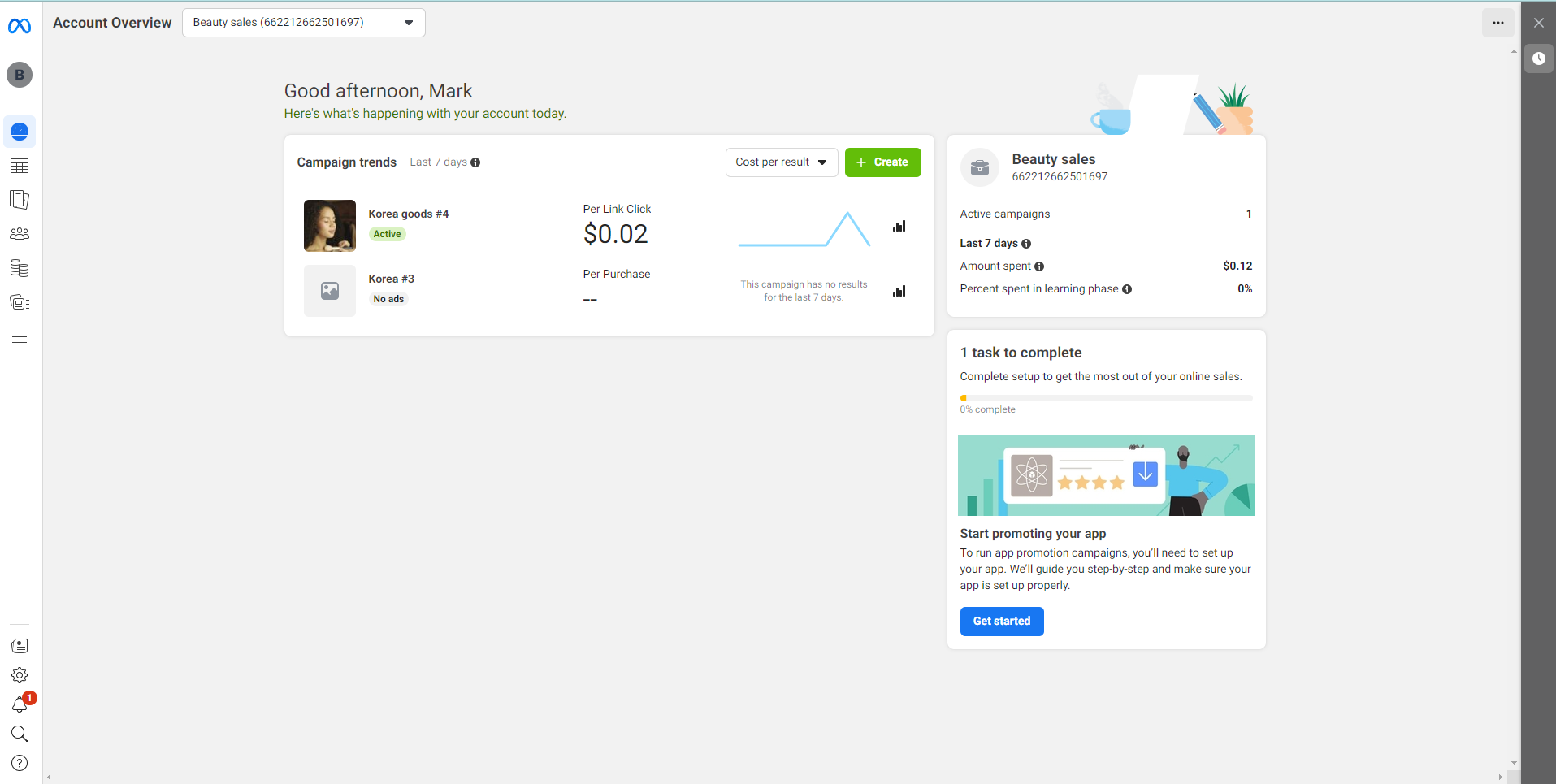
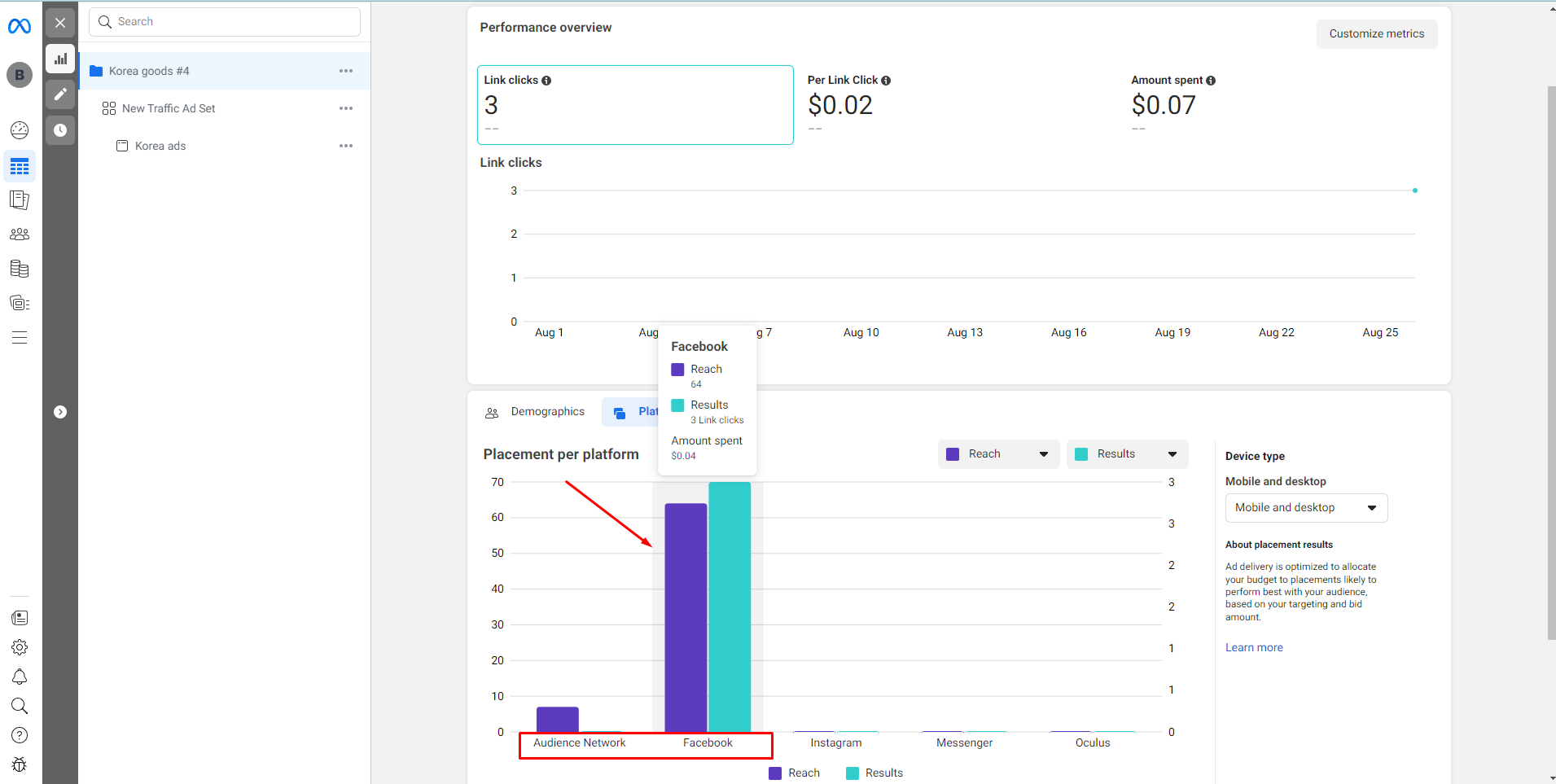
- After the campaign is approved, wait for target clicks and check event receipt in Account Overview:
# Checking Conversion Sending
After target clicks with the fbclid parameter appear, send a postback for verification:
# Sending Additional Parameters to Facebook
By default, Keitaro sends the following parameters to Facebook:
'action_source' => 'website', // Sent by default. This parameter cannot be changed.
'event_name' =>               // Event type from Mapping.
'event_time' =>               // Event occurrence time.
'event_source_url' =>         // Website where the event originated. Data is taken from referrer and sent in hashed form.
'user_data' => [
    'fbc' => click identifier,
    'fbp' => browser identifier,
    'client_ip_address' => click IP address,
    'client_user_agent' => click user agent,
    'country' => country determined by click IP address,
    'st' => region determined by click IP address,
    'ct' => city determined by click IP address
]
2
3
4
5
6
7
8
9
10
11
12
13
Additional parameters can be sent in user_data:
- value. Conversion revenue with currency.
- em. Email.
- ph. Phone.
- fn. First name.
- ln. Last name.
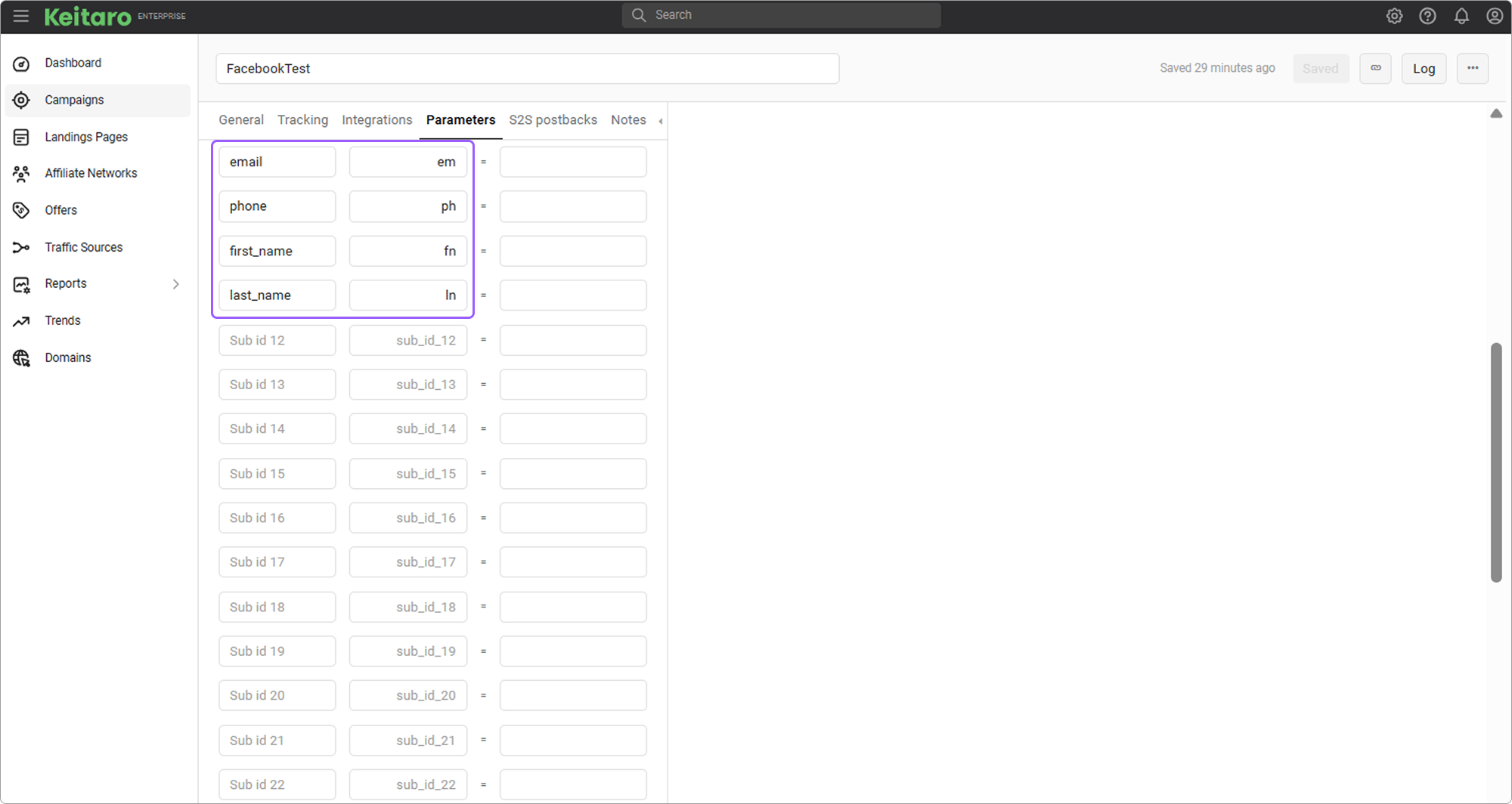
To send data to Facebook, send the corresponding parameters in the incoming postback. Example:
http://your_tracker_domain.com/2a76c2a/postback?subid=3sh8so4er3&status=sale&payout=2.61&em=example@gmail.com&fn=John&ln=Snow&ph=+71234567890
# Proxy
Without a proxy, requests to Facebook API are sent from the tracker server.
Facebook periodically introduces geographic or IP restrictions. A proxy is used for:
- Access from a selected region, for example when setting up ads for specific countries;
- Reducing the risk of blocks or captcha during frequent automated requests.
To turn on a proxy, open an existing integration or create a new one and select Use proxy:
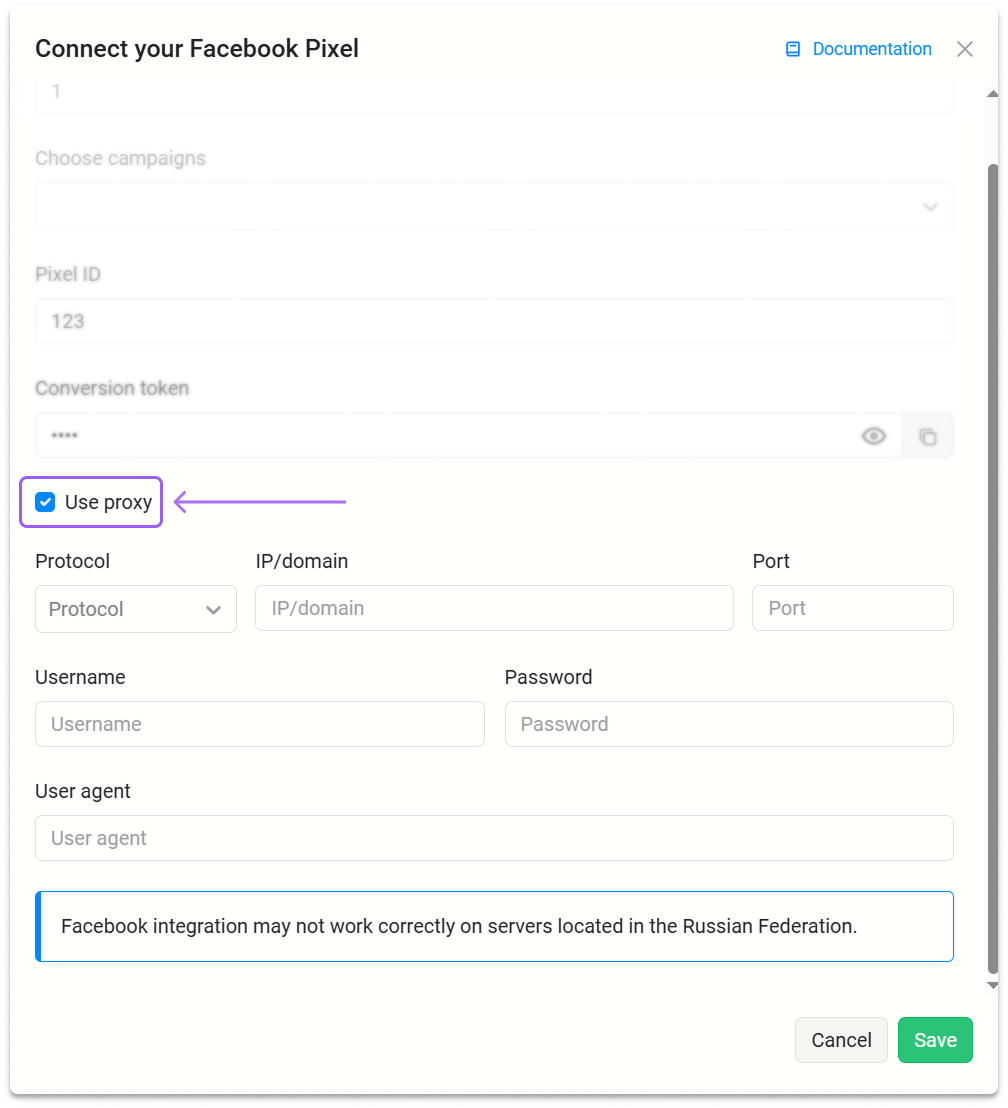
Enter proxy data and click Save.
# Integrations List
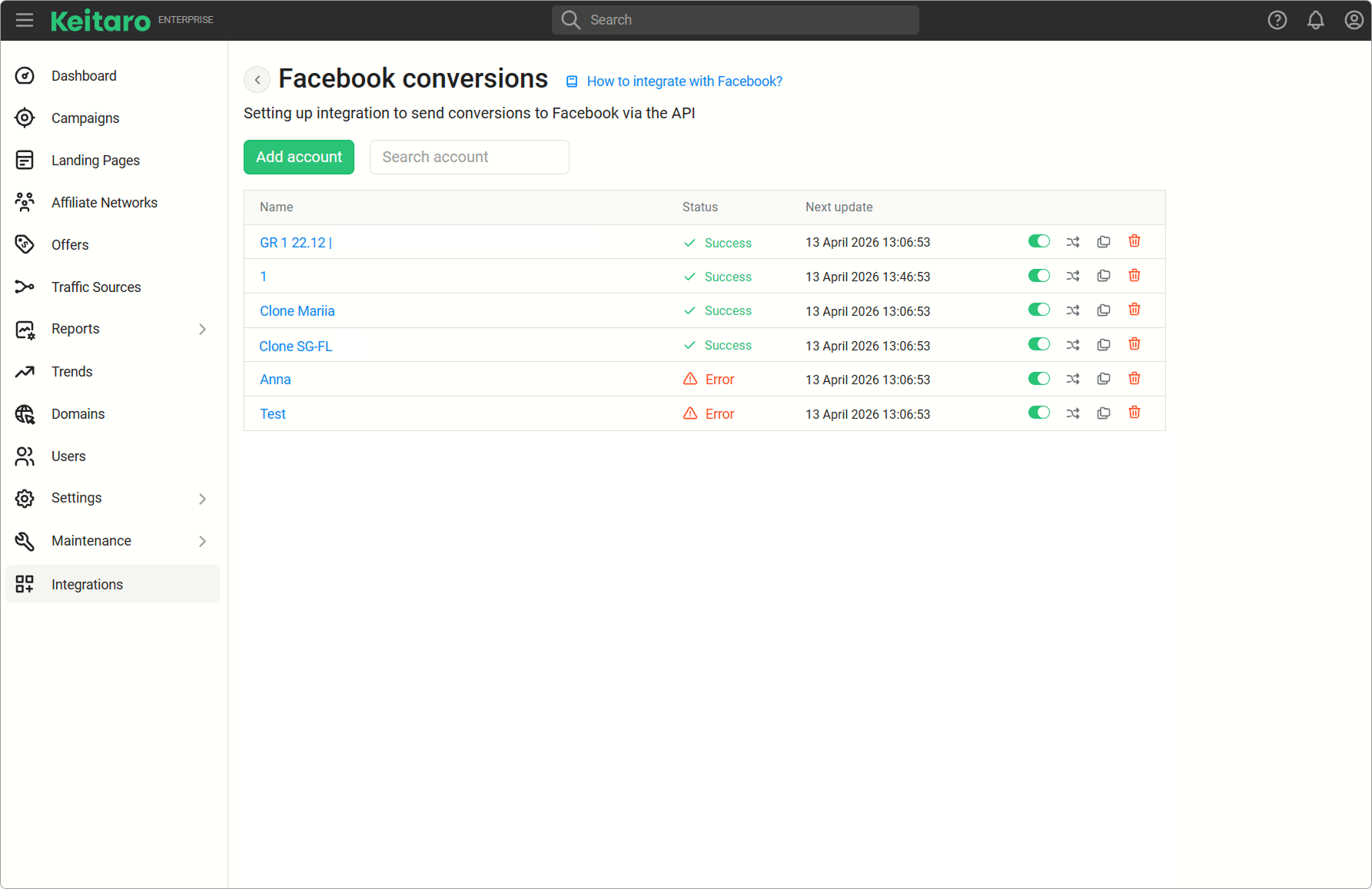
- Name. Integration name. Click it to open the editing form.
- Status. Integration status. If no campaign is selected in the integration settings, an error is displayed.
- Clone. Creates a copy of the configured integration with statuses in Mapping.
- Pause / Resume. Pauses or resumes the integration.
- Mapping. Maps Keitaro statuses to Facebook events.
- Delete. Deletes the integration.
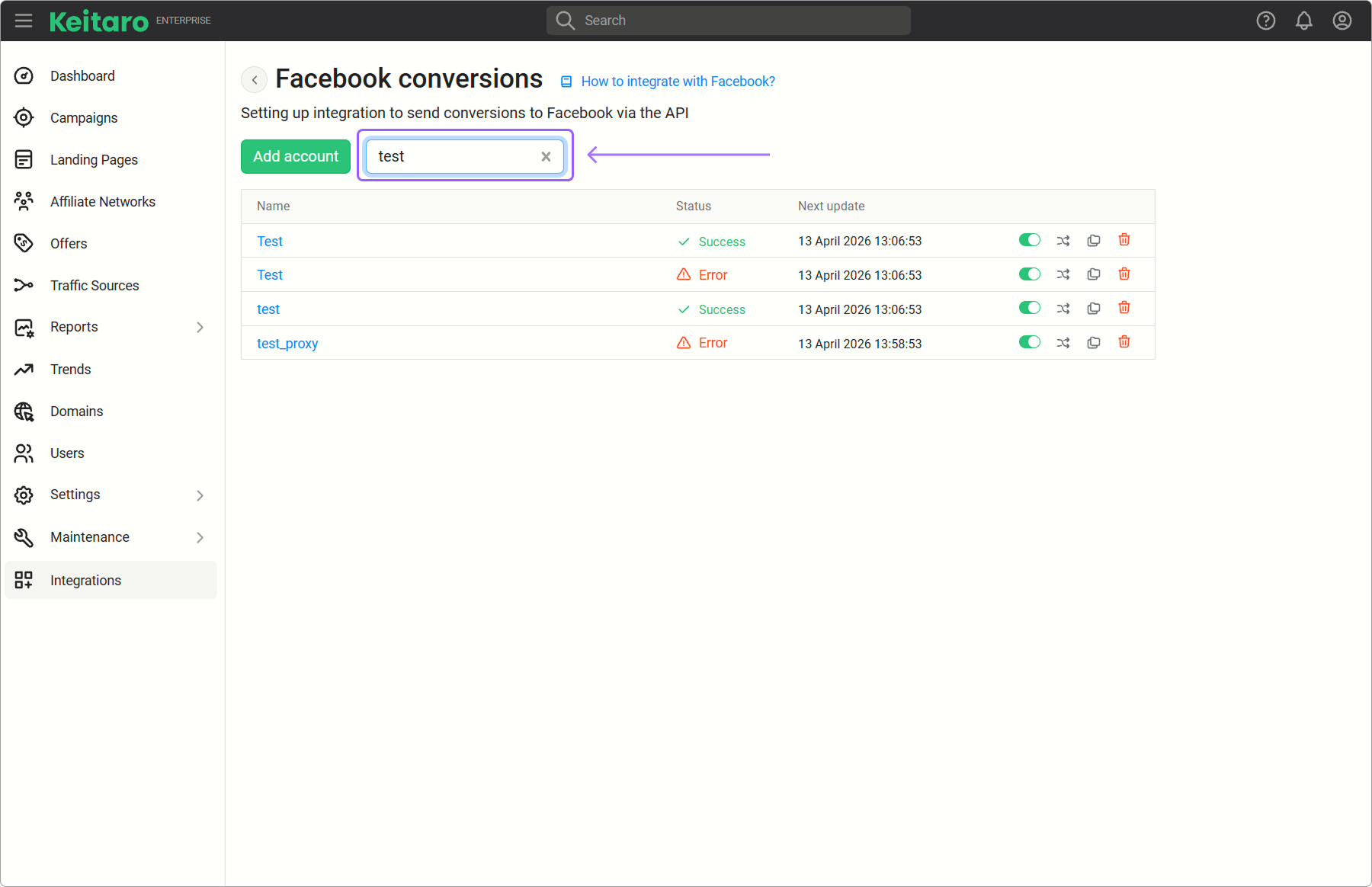
A search field by name is located above the list of integrations:
# Error Diagnostics
# Conversions Are Not Sent
Check:
- Presence of target clicks with the
fbclidparameter; - Removal of
fbclid={fbclid}from URL Parameters in Facebook Ads Manager; - Creation of the Keitaro campaign with the Facebook source template;
- Connection of the integration to the campaign;
- Mapping settings;
- Pixel ID correctness;
- Conversions token validity.
# No fbclid Parameter
fbclid is generated automatically by Facebook. Do not add it as a placeholder in URL Parameters. If fbclid is absent from clicks, check the ad link, and campaign parameters in Facebook Ads Manager.
# Integration Is Not Tied to a Campaign
The error is displayed when no Keitaro campaign is selected in the integration settings. Open the integration, add a campaign, and save the settings.
# FAQ
Is conversion sending available without Conversions API?
To send conversions via pixel without using the integration and API, use Facebook Pixel.
Why is the event not displayed in Facebook?
Check fbclid, Mapping settings, Pixel ID, Conversions token, and the advertising campaign status in Facebook Ads Manager.
How to pass Facebook parameters through an app?
If traffic goes through an app, Facebook parameters are passed through the chain Facebook → app → Keitaro.
For sending conversions, the {fbclid} parameter is used.
Example:
Pass the
fbclidvalue from Facebook to the app.Pass the parameter from the app to Keitaro:
sub1={sub1}
In this case, {sub1} is replaced with the actual fbclid value.
- Specify the following values in Keitaro campaign parameters.
- In the second column -
sub1; - In the third column -
{fbclid}.